You have Cat 6 cable running through your walls, a Linux machine hardwired to your router, and a phone sitting two metres from your Wi-Fi access point. You fire up iperf3, hit run, and then stare at the screen wondering why your throughput looks like something from a 2005 ADSL connection. Sound familiar? You are not alone. Slow iperf3 results are one of the most common frustrations in the home lab world, and the good news is that the fix is almost always within reach. Whether the bottleneck is your switch, your router, your cabling, or even the wireless client itself, this guide will walk you through the most likely culprits and recommend the gear that will genuinely solve the problem.
Why iperf3 Results Are Often Misleading or Disappointing
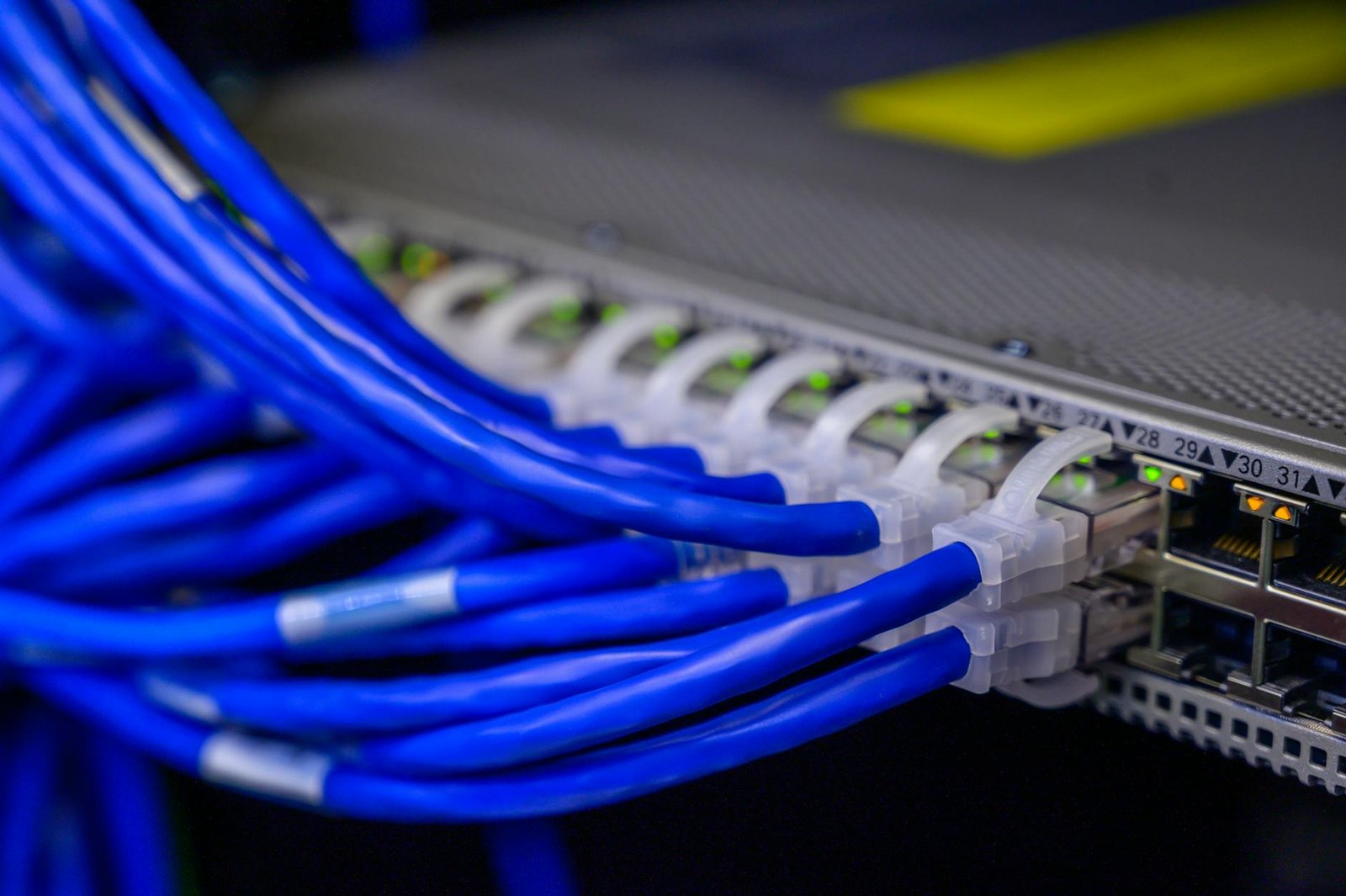
Before you blame your hardware, it helps to understand what iperf3 is actually measuring. It tests the raw throughput between two endpoints, which means every single link in the chain matters. A weak Wi-Fi signal, a cheap unmanaged switch running at 100Mbps instead of 1Gbps, a misconfigured network interface card, or even a faulty patch cable can all drag your numbers into the floor. The phone to Linux machine test is particularly revealing because it crosses two very different network types: wireless and wired. The weakest link always wins, and in most home setups that weakest link is the Wi-Fi side of the equation.
Common Causes of Slow iperf3 Throughput
Here are the most likely reasons your iperf3 speeds are not hitting their potential:
- Wi-Fi band and channel congestion: If your phone is connecting on 2.4GHz in a busy area, speeds will suffer dramatically compared to a clean 5GHz or 6GHz connection.
- Switch negotiating at 100Mbps: Many budget switches or older patch cables cause auto-negotiation to drop from 1Gbps to 100Mbps without any warning.
- CPU bottleneck on the Linux machine: On low-power devices like a Raspberry Pi, the CPU can become saturated during iperf3 tests, throttling results artificially.
- Incorrect iperf3 configuration: Running without parallel streams or without tuning the TCP window size often produces results well below the actual line capacity.
- Faulty or cheap Cat 6 cable: Not all Cat 6 is created equal. Poorly crimped ends or CCA (copper-clad aluminium) cables are notorious for poor performance.
Top 5 Networking Products to Fix Your Home Lab Throughput
1. TP-Link TL-SG108 8-Port Gigabit Unmanaged Switch
A reliable, no-nonsense gigabit switch that ensures every wired device in your lab is negotiating at full 1Gbps speed. If you are currently running through an old router with a built-in switch, swapping to a dedicated unit like this often delivers an immediate improvement.
Pros: Affordable, plug and play, solid build quality, fanless operation, genuine gigabit on all ports.
Cons: No management features, no VLAN support, not suitable for advanced segmentation needs.
2. TP-Link Archer AX55 Wi-Fi 6 Router
Wi-Fi 6 brings dramatically improved throughput and reduced congestion, especially in homes with many connected devices. If your phone supports Wi-Fi 6, pairing it with an AX55 can push iperf3 wireless results well above 500Mbps in ideal conditions.
Pros: Wi-Fi 6 support, strong 5GHz performance, OFDMA for multi-device efficiency, reasonable price point.
Cons: No Wi-Fi 6E, limited advanced routing features out of the box.
3. Raspberry Pi 5 (8GB)
If your Linux iperf3 server is running on an older Pi or a low-spec single board computer, the CPU may be the bottleneck. The Raspberry Pi 5 offers a significant leap in processing power, making it a much more capable iperf3 endpoint and general home lab workhorse.
Pros: Massive performance upgrade over Pi 4, native PCIe support, excellent community support, compact form factor.
Cons: Requires active cooling under load, still limited to 1Gbps Ethernet without a HAT.
4. Ubiquiti UniFi Switch Lite 8 PoE
For home labbers who want to step up to managed networking, the UniFi Switch Lite 8 PoE is a fantastic entry point. You get VLAN support, port statistics, and the ability to actually see what speed each port is negotiating at, which is invaluable for diagnosing iperf3 issues.
Pros: Managed features, PoE on four ports, excellent UniFi ecosystem integration, per-port visibility.
Cons: Requires UniFi controller for full features, higher cost than unmanaged options.
5. Monoprice SlimRun Cat6A Ethernet Cables
Cabling is the most overlooked variable in home lab networking. Monoprice SlimRun Cat6A cables use true pure copper conductors and are individually tested, making them a significant upgrade over generic bulk cables that may be causing your auto-negotiation headaches.
Pros: Pure copper conductors, slim and flexible, available in multiple lengths, excellent build quality for the price.
Cons: Slim jacket is less durable in high-traffic areas, not ideal for outdoor or in-wall runs.
Product Comparison Table
| Product | Category | Best For | Price Range | Rating |
|---|---|---|---|---|
| TP-Link TL-SG108 | Switch | Budget gigabit upgrade | £20 to £30 | 4.5/5 |
| TP-Link Archer AX55 | Router | Wi-Fi 6 wireless speeds | £80 to £100 | 4.4/5 |
| Raspberry Pi 5 8GB | SBC Server | Powerful iperf3 endpoint | £70 to £90 | 4.7/5 |
| Ubiquiti UniFi Lite 8 PoE | Managed Switch | Advanced lab visibility | £130 to £160 | 4.8/5 |
| Monoprice SlimRun Cat6A | Cabling | Reliable pure copper runs | £10 to £25 | 4.6/5 |
Frequently Asked Questions
Why does iperf3 show low speeds even with Cat 6 cable?
Cat 6 cable is only as good as the devices at each end. If your switch, router, or NIC is auto-negotiating at 100Mbps, or if you are using CCA cable rather than pure copper, you will see dramatically reduced throughput regardless of the cable category rating.
How do I run iperf3 correctly for accurate results?
Try running iperf3 with parallel streams using the command iperf3 -c [server IP] -P 4. This uses four parallel TCP streams and typically gives a much more accurate picture of your real-world throughput capacity.
Does Wi-Fi always bottleneck iperf3 tests?
On older Wi-Fi standards like 802.11n or even 802.11ac on a congested 2.4GHz channel, yes. Wi-Fi 6 on a clean 5GHz channel can achieve 400 to 700Mbps in real-world iperf3 tests, which is far more competitive with wired connections.
Can a Raspberry Pi handle iperf3 at full gigabit speeds?
The Raspberry Pi 4 and Pi 5 can both approach gigabit speeds in wired iperf3 tests, but the Pi 4 sometimes struggles with CPU saturation at very high throughput. The Pi 5 handles this significantly better thanks to its improved processor architecture.
Should I use TCP or UDP mode in iperf3?
TCP mode is the default and best reflects real-world application performance. UDP mode is useful for testing packet loss and jitter, particularly relevant for VoIP or video streaming workloads in your home lab.
Best Overall Pick
The Ubiquiti UniFi Switch Lite 8 PoE takes the top spot as the best overall pick for home lab users struggling with iperf3 performance issues. Here is why: rather than guessing what is wrong, this switch shows you exactly what speed each port is negotiating, how much traffic is flowing, and whether any errors are occurring in real time. For a home lab environment where you are constantly testing, tweaking, and expanding your setup, that visibility is worth every penny. It also grows with you as your lab scales up, supporting VLANs, PoE for access points, and full UniFi ecosystem integration. If you are serious about your home lab network, this is the upgrade that pays dividends across every single project you take on.
Ready to stop guessing and start seeing exactly what is happening on your network? Grab the UniFi Switch Lite 8 PoE and pair it with quality Cat6A cabling to transform your iperf3 results overnight. Check the links above to find the best current prices and get your home lab running at the speeds it deserves.
This post contains affiliate links. If you purchase through these links, I may earn a small commission at no extra cost to you. Prices are approximate and may vary by retailer and date. Performance results are approximate and will vary based on your specific hardware and environment.