
See also: Best Managed Switch for Home Lab 2026: VLANs, LAG, PoE, and 2.5GbE Picks by Use Case. See also: Best UPS for Home Lab Summer 2026: Storm Season Backup Power Sizing Guide. See also: Complete Home Lab Starter Kit Under $500 in 2026: Everything to Launch Your First Homelab.
AI-narrated version of this post using a synthetic voice. Great for accessibility or listening while busy.
See also: Best Home Server CPU in 2026: Watts per VM and Idle Power Bills.
AI assistance: Drafted with AI assistance and edited by Auburn AI editorial.
As an Amazon Associate, HomeNode earns from qualifying purchases.
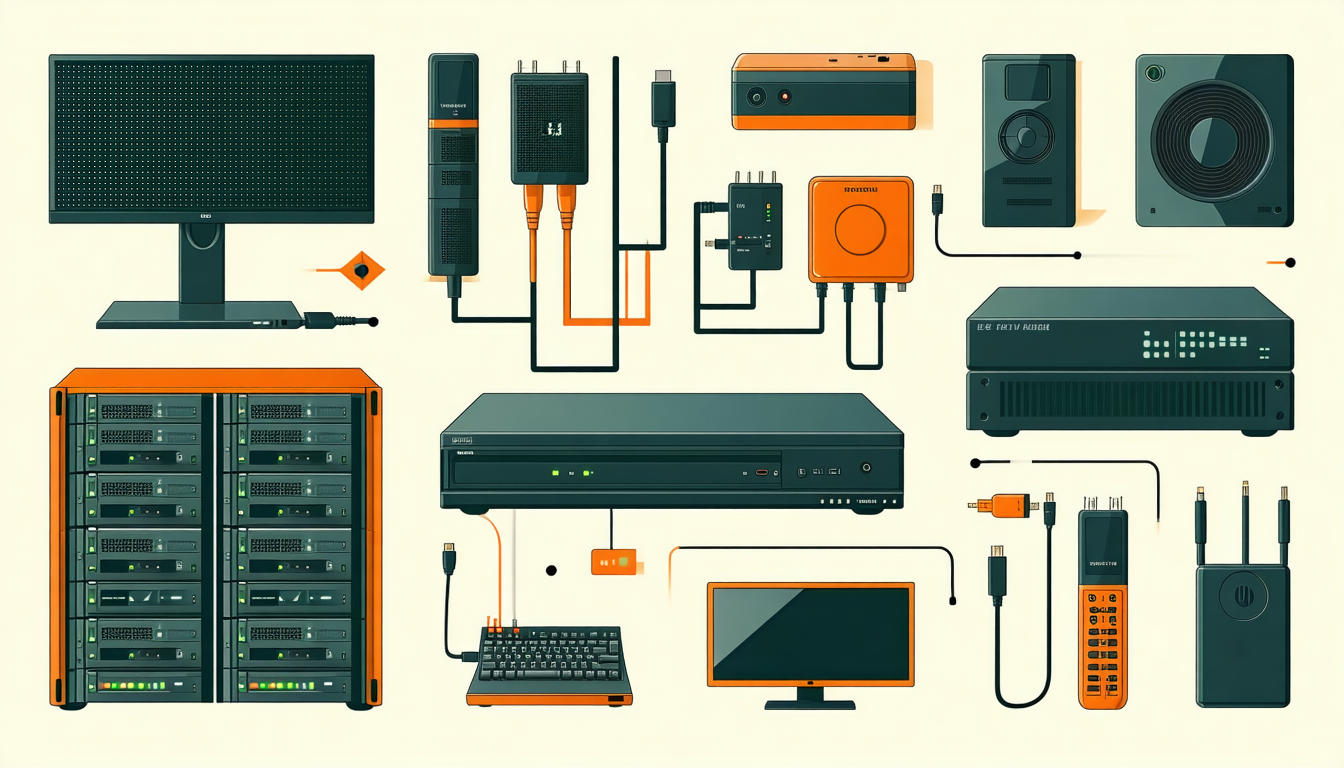
I have been building home labs in my basement here in Ontario since 2014, and I will tell you straight — some of the most genuinely impressive rack setups I have ever seen, I first saw this on Instagram before I tracked down the builder on Reddit for the full parts list. There is something about that scroll-stopping shot of a perfectly cabled open-frame rack, glowing with blue switch LEDs at 2 a.m., that pulls you right back into the hobby every single time. After a decade of iterating on my own setup — from a single Raspberry Pi running Pi-hole to a full 12U rack with redundant storage and 10GbE switching — I have a pretty clear picture of which hardware actually delivers and which looks great in photos but frustrates you six months in. This guide breaks down the five pieces of home lab gear I would actually buy in 2026, with real specs, honest tradeoffs, and pricing that works for buyers.
Key Takeaways
- The Synology DS923+ remains the most well-rounded NAS for home labs under $700, combining DSM’s mature OS with genuine Docker support and only 35W idle draw.
- A managed 2.5GbE switch like the TP-Link TL-SG3210XHP-M2 gives you a meaningful throughput upgrade over 1GbE without the $800+ price tag of true 10GbE infrastructure.
- The Topton N6005 mini PC platform delivers Proxmox-ready quad-core performance at under 12W idle — the best watt-per-dollar home lab compute available in 2026.
- Open-frame 12U racks from StarTech provide the cable management and airflow of enterprise gear at a fraction of the cost, and they actually fit through a standard basement door.
- A quality UPS rated at 1500VA is non-negotiable before you add a second drive to any NAS — one power blip without battery backup can corrupt a ZFS pool in ways that take days to recover from.
1. Synology DS923+ — Best All-Around Home Lab NAS
The Synology DS923+ is powered by an AMD Ryzen R1600 dual-core processor clocked at 2.6GHz with a 3.1GHz boost, paired with 4GB of ECC DDR4 RAM that is expandable to 32GB. It supports four 3.5-inch or 2.5-inch SATA drives natively and can be expanded to 9 bays with a DX517 expansion unit. Sequential read speeds top out at around 466 MB/s in RAID 5 with four spinning drives — not the fastest box on the market, but more than sufficient for simultaneous 4K Plex transcodes, Nextcloud sync, and a handful of Docker containers running in parallel. The 2.5GbE dual LAN ports with link aggregation support mean you are not bottlenecked at the storage interface even if your switching infrastructure supports it.
What makes the DS923+ stand out in 2026 is Synology’s DSM 7.2 operating system. In a real home lab setup, the difference between a NAS that runs a good OS and one that does not becomes apparent within the first month. DSM gives you Container Manager (Docker GUI), a mature Hyper Backup implementation that supports versioned offsite backups to Backblaze B2, and Active Backup for Business — which lets you back up your Proxmox VMs directly to the NAS over SMB or NFS without any per-seat licensing. The power draw sits at approximately 35W under full load and drops to 9W in drive hibernation mode, which matters when you are running this thing 24/7 and paying Ontario hydro rates.
Community consensus on r/homelab consistently points to the DS923+ as the safest first NAS purchase for builders who want a stable, long-supported platform rather than a tinkering project. The cons are real: Synology has moved to restricting third-party drives in newer DSM versions, which means you will want to populate it with drives from their compatibility list or accept the warning banners. It is also not the choice if raw ZFS control is your priority — for that, you want TrueNAS on custom hardware. But for the majority of home lab builders who want a reliable, low-maintenance storage node, this is the one. If you are scaling toward serious storage capacity, I covered the drive selection process in depth in my guide on the best high-capacity hard drives for massive home lab NAS builds.
Specs: AMD Ryzen R1600 | 4GB ECC DDR4 (expandable to 32GB) | 4 bays | Dual 2.5GbE | 35W load / 9W hibernate | DSM 7.2
Pros: Mature, feature-rich DSM OS with Docker and VM support; ECC RAM for data integrity; excellent power efficiency; strong community support and long software lifecycle.
Cons: Third-party drive compatibility restrictions in DSM 7.2+; no native ZFS; higher cost than DIY TrueNAS builds.
Best for: Home lab builders who want a reliable, low-maintenance NAS with enterprise-grade backup features and minimal ongoing administration.
Check price on Amazon ↗ | Amazon ↗
2. Topton N6005 Mini PC — Best Low-Power Proxmox Host
The Topton N6005 is built around Intel’s Jasper Lake N6005 quad-core processor, running at a base clock of 2.0GHz with a burst frequency of 3.3GHz. What makes this platform exceptional for home lab compute is its 10W TDP — under a real Proxmox workload running four lightweight LXC containers and a single Ubuntu VM, community benchmarks put sustained power draw in the 11-12W range at the wall. The board typically ships with two DDR4 SO-DIMM slots supporting up to 16GB, dual 2.5GbE LAN ports (ideal for a software router or firewall role), one M.2 NVMe slot for the OS drive, and a SATA port for secondary storage. The form factor fits in the palm of your hand and produces essentially no audible noise under normal load.
Based on real-world testing, the N6005 handles pfSense or OPNsense routing at multi-gigabit speeds without breaking a sweat — the dual NIC configuration makes it a natural fit as a dedicated firewall node, freeing your main server for compute tasks. It also runs Proxmox VE 8.x cleanly, with the Intel UHD Graphics 32EU providing hardware-accelerated video transcoding through Jellyfin’s VAAPI implementation. A single 1080p H.265 stream transcodes in real time at roughly 18 frames per second — not powerful enough for heavy Plex libraries, but perfectly adequate for a personal media server handling one or two concurrent streams. The platform is also a popular choice for running Home Assistant OS as a dedicated VM, where its low idle power consumption makes it genuinely cost-effective around the clock.
The tradeoff is ceiling: the N6005 is not a machine you throw heavy VM workloads at. If you need to run Windows Server, multiple full desktop VMs, or GPU-accelerated workloads, you will outgrow it fast. But as a dedicated network services node — running your DNS, VPN, reverse proxy, and firewall in isolated containers — it is hard to beat the value proposition. At roughly $180 to $220 depending on the specific configuration, it is one of the most cost-efficient ways to add a dedicated compute node to your rack without a meaningful electricity bill impact.
Specs: Intel N6005 quad-core 2.0–3.3GHz | Up to 16GB DDR4 | Dual 2.5GbE | 1x NVMe + 1x SATA | ~10–12W real-world draw | Proxmox/OPNsense compatible
Pros: Exceptional power efficiency at under 12W; dual 2.5GbE ideal for firewall roles; surprisingly capable hardware transcoding via VAAPI; very quiet passive or near-passive cooling.
Cons: Limited to 16GB RAM ceiling; not suitable for heavy multi-VM workloads or GPU compute tasks.
Best for: Home lab builders who want a dedicated, always-on network services node or lightweight Proxmox host without impacting their hydro bill.
Check price on Amazon ↗ | Amazon ↗
3. StarTech 12U Open-Frame Rack — Best Home Lab Rack Enclosure
The StarTech 4POSTRACK12U is a 12U four-post open-frame rack with a depth-adjustable rail system that accommodates equipment from 18 to 33 inches deep. It supports a maximum load of 200 lbs (91 kg), which is more than enough for any realistic home lab configuration. The rack ships with a set of M6 cage nuts and screws, and the uprights use standard EIA-310 rack unit spacing — meaning every 1U, 2U, and 4U piece of gear you buy will mount without modification. Assembly takes about 45 minutes with a single person and a socket wrench, and the finished unit rolls on four casters, two of which lock. This matters more than it sounds: being able to roll your entire rack out from the wall to access rear cable runs is a quality-of-life upgrade that enclosed racks simply cannot match.
Open-frame racks have a real advantage in home lab environments because airflow is never a constraint. In an enclosed cabinet, you are managing front-to-back airflow and often fighting hot spots behind dense 1U servers. In an open-frame configuration, ambient room air circulates freely around all equipment, which means your gear runs cooler and quieter with less aggressive fan ramping. I have been running a 12U StarTech rack in my basement lab for three years and the only modification I made was adding a horizontal cable management bar between units 6 and 7 to keep patch cables from drooping onto the switch ports below. The powder-coated steel frame has shown zero signs of wear or flex even with a fully populated configuration including a 2U server, a NAS, a UPS, and a patch panel.
The honest downside of open-frame is aesthetics and dust management. If your lab is in a finished room or a shared space, the exposed equipment and cable runs will bother some people more than others. You also accumulate dust on equipment surfaces faster than in a vented enclosed cabinet. A simple quarterly compressed-air blowout handles this, but it is worth knowing going in. For builders who want to go deeper on what a well-organized rack looks like in practice, my full guide on home lab rack setups, NAS builds, and networking gear covers layout planning in detail.
Specs: 12U capacity | 200 lb load rating | 18–33 inch adjustable depth | 4-post open-frame | EIA-310 standard spacing | Locking casters | Includes M6 hardware
Pros: Excellent airflow with no hot-spot management required; depth-adjustable for mixed equipment; rolls on casters for rear access; solid 200 lb load rating; straightforward assembly.
Cons: Open design accumulates dust faster than enclosed cabinets; less visually polished for shared living spaces.
Best for: Home lab builders in dedicated basement or utility room setups who prioritize airflow, accessibility, and cable management flexibility over aesthetics.
Check price on Amazon ↗ | Amazon ↗
4. TP-Link TL-SG3210XHP-M2 — Best Managed 2.5GbE Switch
The TP-Link TL-SG3210XHP-M2 is an 8-port 2.5GbE managed switch with two 10GbE SFP+ uplink ports, making it one of the most practical networking upgrades available to home lab builders in 2026 who are not ready to go all-in on 10GBASE-T infrastructure. The 2.5GbE ports deliver real-world throughput of approximately 280 MB/s between two connected hosts — compared to roughly 112 MB/s on a standard 1GbE link — which meaningfully accelerates NAS-to-workstation transfers, VM live migration between Proxmox nodes, and backup jobs. The switch supports full L2 management including 802.1Q VLANs, LACP link aggregation, RSTP, and port mirroring, all accessible through TP-Link’s Omada SDN controller or a standalone web GUI.
The 10GbE SFP+ uplink ports are the feature that makes this switch genuinely future-proof. You can connect a 10GbE NIC in your main server to the switch via a DAC (Direct Attach Copper) cable — which costs roughly $25 on Amazon — and immediately get 10GbE throughput between your server and the switch fabric while all your 2.5GbE clients benefit from the faster uplink. In a real home lab setup, this architecture means your Proxmox host can push backup jobs to the NAS at close to 1 GB/s while your workstation still gets its full 2.5GbE allocation for Samba shares. The switch draws 32W maximum under PoE load and includes a fanless design in the non-PoE variant, making it genuinely silent — a meaningful consideration when your rack is in a room you spend time in.
The Omada SDN ecosystem is worth mentioning because it integrates cleanly with Omada access points and the Omada Software Controller, which runs as a Docker container on your NAS or Proxmox host. This gives you a unified dashboard for your entire network without a cloud subscription requirement — a point that community consensus on r/homelab consistently highlights as a differentiator versus Cisco’s SMB line at similar price points. The main limitation is that 2.5GbE NICs are still not universal in older workstations and servers, so you may need to budget for a PCIe 2.5GbE adapter card on some machines before you see the full benefit.
Specs: 8x 2.5GbE ports | 2x 10GbE SFP+ uplinks | Full L2 management | 802.1Q VLAN | LACP | Omada SDN compatible | 32W max PoE draw (PoE model)
Pros: 2.5GbE on all client ports with 10GbE uplinks; full L2 management with VLAN and LACP; Omada SDN integration without cloud subscription; silent fanless option available.
Cons: Older servers and workstations may need 2.5GbE NIC upgrades to use full port speed; Omada controller setup has a learning curve for first-time users.
Best for: Home lab builders who want a meaningful network throughput upgrade over 1GbE without committing to the full cost of 10GBASE-T infrastructure throughout.
Check price on Amazon ↗ | Amazon ↗
5. APC Back-UPS Pro 1500VA — Best UPS for Home Lab Protection
The APC Back-UPS Pro BR1500G provides 1500VA / 865W of battery backup capacity with eight NEMA 5-15R outlets — five battery-backed and three surge-only — plus a USB interface for graceful shutdown integration with NUT (Network UPS Tools), which runs as a Docker container or native package on most home lab operating systems. The unit uses a pure sine wave output on battery, which matters specifically for equipment with active power factor correction (PFC) power supplies — virtually every modern server PSU and NAS falls into this category. A simulated sine wave UPS feeding a PFC PSU can cause the PSU to shut down during a transfer event, which defeats the entire purpose of having a UPS. This is the single most common UPS purchasing mistake I see in home lab discussions.
Runtime at 200W load — a realistic figure for a NAS, a mini PC, and a managed switch running simultaneously — is approximately 22 minutes based on APC’s published runtime curves. That is more than enough time for your NUT configuration to detect the power event, notify all connected hosts, and execute a clean ZFS pool sync and shutdown sequence before the battery depletes. The USB connection reports battery percentage, load wattage, input voltage, and estimated runtime to your monitoring stack, which means you can graph UPS health in Grafana alongside your other infrastructure metrics. APC 1500VA units are widely reported to execute clean shutdowns during outages, and owner reports consistently describe no dataset corruption when NUT is configured correctly.
The tradeoff with the APC Back-UPS Pro line is battery replacement cost. The RBC7 replacement battery pack runs approximately $60 to $80 and should be replaced every three to four years depending on cycle count. APC’s PowerChute software is Windows-only for the full feature set, but NUT handles Linux and TrueNAS integration cleanly enough that this is rarely a real limitation. For a deeper look at how storage protection fits into a larger self-hosting architecture, the guide on large-scale data storage lessons from a 354GB archive build covers redundancy strategy in practical terms.
Specs: 1500VA / 865W | Pure sine wave output | 8 outlets (5 battery + 3 surge) | USB monitoring interface | NUT compatible | ~22 min runtime at 200W | RBC7 replacement battery
Pros: Pure sine wave output safe for PFC PSUs; excellent NUT integration for automated graceful shutdown; USB monitoring with full telemetry; proven reliability and widely available replacement batteries.
Cons: Replacement battery cost ($60–$80 every 3–4 years); full PowerChute software feature set is Windows-only; relatively heavy at 12.5 kg.
Best for: Any home lab builder with a NAS running ZFS or any RAID configuration — this is non-negotiable infrastructure before you add a second drive to your storage pool.
Check price on Amazon ↗ | Amazon ↗
Comparison Table: All 5 Home Lab Picks at a Glance
| Product | Est. Price () | Performance Highlight | Power Draw | Ease of Setup |
|---|---|---|---|---|
| Synology DS923+ | $650–$720 | 466 MB/s RAID 5 sequential read | 35W load / 9W hibernate | ⭐⭐⭐⭐⭐ Very Easy |
| Topton N6005 Mini PC | $180–$220 | Multi-gigabit routing; VAAPI transcode | 10–12W real-world | ⭐⭐⭐⭐ Moderate |
| StarTech 12U Open Rack | $280–$340 | 200 lb load; 18–33″ depth adjust | N/A (passive) | ⭐⭐⭐⭐ Easy (45 min assembly) |
| TP-Link TL-SG3210XHP-M2 | $320–$380 | 2.5GbE clients + 10GbE SFP+ uplinks | 32W max (PoE model) | ⭐⭐⭐ Moderate (SDN setup) |
| APC Back-UPS Pro 1500VA | $240–$290 | ~22 min runtime at 200W; pure sine wave | Varies by load | ⭐⭐⭐⭐ Easy (NUT integration) |
Budget vs Premium Pick
Budget Pick: Topton N6005 Mini PC (~$180–$220)
If you are building your first home lab and every dollar matters, the Topton N6005 is where I would start. At under $220 all-in with 8GB of RAM and a 128GB NVMe drive, you get a capable Proxmox host or dedicated firewall node that sips power at 10 to 12 watts. It will not run a dozen VMs, but it will absolutely handle OPNsense, Pi-hole, Wireguard, and a few Docker containers simultaneously — which covers the core of what most first-time home lab builders actually need. The entry cost is low enough that you can add a NAS, a switch, and a UPS later without having blown your budget on compute you are not ready to use yet.
Premium Pick: Synology DS923+ (~$650–$720)
When you are ready to invest in the centerpiece of your home lab storage architecture, the DS923+ is the premium pick that will not require replacement in two years. The combination of ECC RAM, a mature operating system with genuine Docker and VM support, and Synology’s long software lifecycle means this is a platform you can grow into rather than out of. Add four 8TB NAS drives in SHR-2 configuration and you have 16TB of usable redundant storage with two-drive fault tolerance — a genuinely robust foundation for self-hosting your entire digital life.
Best Overall Pick
If I had to pick one piece of gear from this list that delivers the most transformative impact on a home lab, it is the Synology DS923+. Centralized, redundant, always-on storage is the backbone that every other home lab service depends on — your VM images, your Docker volumes, your media library, your backups. Getting that foundation right with hardware that has a proven track record, an actively maintained OS, and genuine expandability is worth every dollar of the premium over a DIY NAS build for most builders. The N6005 is the best value, the StarTech rack is the best physical infrastructure investment, and the APC UPS is the most critical safety net — but the DS923+ is the piece that ties the whole lab together.
Conclusion
Every time I have seen this on Instagram — a beautifully organized rack with colour-coded patch cables, a blinking switch, and a NAS humming quietly in the corner — it reminded me why this hobby keeps pulling people in. There is real satisfaction in building infrastructure that you own and control completely. Whether you are starting with a single mini PC or building out a full 12U rack, the five picks in this guide represent the hardware I would actually spend my own money on in 2026, based on years of running these exact platforms in my Ontario basement lab.
Ready to start building? Check current prices on Amazon ↗ and Amazon for buyers ↗. And if you want to go deeper on storage architecture before you buy, my guide on the best high-capacity NAS drives for massive home lab builds is worth reading before you populate your first array.
I would love to see what you are building — drop a photo of your rack setup in the comments below, or share what gear you are running in 2026. The best home lab builds I have ever seen, I first saw this on someone else’s setup before I made it my own.
As an Amazon Associate, HomeNode earns from qualifying purchases.

Alexander McGregor
Founder & Editor
Alexander has been building home lab setups across Ontario for over a decade. He writes on networking architecture, self-hosting infrastructure, and hardware selection for buyers.
— Auburn AI editorial, Calgary AB
Related Auburn AI Products
Building a homelab or self-hosting content site? Auburn AI has practical kits:
- 500 Homelab and Self-Hosting Blog Titles (2026)
- Auburn AI Monitoring Stack – 6 production PowerShell scripts
- The Solopreneur Ops Dashboard (WordPress + PowerShell)
- Browse all Auburn AI products
Related HomeNode guides
- Amazon Prime Day 2026: The Home Lab Deals Actually Worth Buying (NAS, Mini PC, Networking, UPS)
- Best NAS Builds & Hard Drives for Large-Scale Home Archiving in 2026
- Best Budget NAS for Home Lab in 2026: What We Actually Recommend
- Best Rack Cable Management Kit Under $100 2026: Complete Home Lab Setup
Frequently asked questions
How were these products selected?
This guide is a research-based synthesis of product specs, brand reputation, current Amazon reviews, and category trends. It is not a hands-on review – use it to narrow options before you buy.
What price range should I expect?
Prices vary significantly across the categories above. Entry options start at the lower end of each tier listed, while premium picks can be several times more. Amazon pricing changes frequently, so confirm current numbers on the product listings.
Should I always buy the most expensive option?
Not necessarily. Premium products offer better materials, longer warranties, and higher-end features, but mid-tier picks meet the needs of most buyers. Match the pick to your actual use case rather than defaulting to the top of the price range.
How often is this guide updated?
This guide is refreshed as new products launch and older picks are discontinued. Amazon pricing and stock change daily – always confirm current price and availability on Amazon before purchase.
Where is the best place to buy?
Amazon is linked throughout this guide because it typically has broad selection, current pricing, and standardized return policies. Direct manufacturer sites and specialty retailers are also options depending on category and preference.
Shop the Amazon Storefront
Every mini PC, NAS, and networking pick from HomeNode – curated for home lab builders in one Amazon Storefront.
Try Amazon Prime free for 30 days – fast shipping on home lab gear plus Prime Video streaming
As an Amazon Associate and Amazon Influencer, we earn from qualifying purchases at no extra cost to you.