
AI-narrated version of this post using a synthetic voice. Great for accessibility or listening while busy.
“My NAS is full” is one of the most common home lab complaints, and the instinctive response – buy more drives, add more bays – treats a decision problem as a capacity problem. Before spending money on more storage, it’s worth asking a more basic question: how much of what’s actually on that NAS needs to live on fast, always-spinning, actively-backed-up primary storage, versus how much would be perfectly well served sitting on cheaper, slower archival storage that only gets powered on occasionally.
Our temporary storage offloading guide covers one specific angle of this problem – moving data off a full primary drive short-term – and our NAS hard drive comparison covers picking the right drives once you know what you’re buying for. This guide sits in front of both: a framework for deciding what actually belongs on primary storage before you buy anything.
Who This Framework Is Actually For
This is written for anyone whose NAS capacity keeps climbing and who hasn’t yet done a deliberate pass to sort what’s actually on it – which describes most home lab operators after a year or two of just adding data without a retention plan. If you already run a disciplined tiered storage setup with primary and archival tiers clearly separated, this is less urgent for you; if “my NAS is at 90% and I’m about to buy more drives” sounds familiar, this framework will likely save money before it costs any.
The Core Distinction: Active vs Archival Data
Active data is anything you access regularly, need fast, and want protected by your NAS’s RAID redundancy and backup routine – current projects, your photo library’s recent imports, media you actually watch, documents in daily use. Archival data is everything you want to keep but rarely or never touch again – old project files from years ago, a duplicate copy of something already backed up elsewhere, media you’ve watched once and are unlikely to revisit, or raw footage and photos you’ve already processed and no longer need in original form. The mistake most people make is treating all of it as active data by default, keeping everything on the same fast, expensive, continuously-spinning primary array regardless of how often it’s actually touched.
A Simple Decision Framework
For any given folder or file category on a full NAS, ask three questions: when did you last actually open it, is there any real chance you’ll need fast access to it again, and does losing convenient access to it, not losing the data, just losing instant access, cost you anything meaningful. Anything untouched for over a year, unlikely to be needed on short notice, and not costing you anything by being slightly less convenient to reach is a strong archival candidate. Anything you’ve touched in the last few months, or that you’d be frustrated waiting even a few minutes to access, belongs on primary storage regardless of how large the file is – this isn’t a size-based decision, it’s an access-pattern-based one, and treating it as purely about file size is a common mistake that under-archives frequently-accessed small files and over-protects rarely-touched large ones.
What Actually Belongs on Archival Storage
Completed project files past their active revision period, raw camera footage or photos already processed into final exports, old system backups superseded by newer ones, media libraries beyond what you realistically rewatch, and genuinely duplicate copies of anything already preserved elsewhere are all strong candidates for moving off primary storage. The test isn’t whether you could theoretically need this again – almost anything passes that low bar – it’s whether you’d be meaningfully inconvenienced by it taking minutes rather than milliseconds to access, which most archival candidates fail once you’re honest about it.
Archival Hardware: What’s Actually Different About It
You don’t need a different physical drive class to build an archival tier – a standard NAS-rated drive works fine for archival duty, since the actual difference is in how it’s used, not what’s printed on the drive itself. A drive dedicated to archival storage typically sees a far lighter duty cycle than a primary-array drive: powered on occasionally for a sync or verification pass rather than spinning continuously under constant read/write load, which in practice means less wear accumulated per year even on otherwise identical hardware. The advantage of a NAS-rated drive over a repurposed desktop drive here is the same reliability case that applies to primary storage – purpose-built vibration tolerance and firmware suited to living inside an enclosure – it’s the usage pattern layered on top that makes it archival, not a separate hardware category.

- NAS drive for systems with up to 8 bays; CMR recording, 7200 RPM, 512 MB cache, SATA 6 Gb/s
- Supports up to 180 TB/yr workload rate
- NASware firmware for NAS compatibility; 3-year limited warranty
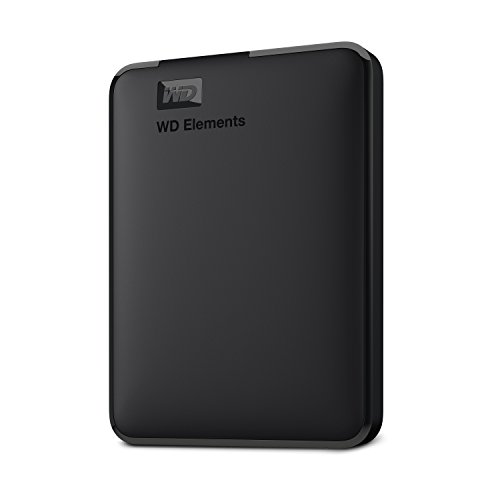
For data you want physically separated from your always-on NAS entirely – genuine cold storage, disconnected from the network and only connected when actually needed – an external cold-storage HDD offers a meaningfully different risk profile than keeping everything on a networked array: it’s immune to a ransomware event or a NAS-level failure that could affect networked drives simultaneously, at the cost of needing manual connection whenever you actually want to access what’s on it.
- Plug-and-play expandability
- SuperSpeed USB 3.2 Gen 1 (5Gbps)
Comparison: Primary vs Archival Storage Approach
| Factor | Primary (Active) Storage | Archival (Cold) Storage |
|---|---|---|
| Access speed | Immediate, always-on | Minutes (manual connection or spin-up) |
| Typical drive type | Performance NAS-rated drives | Archival NAS-rated or external cold-storage drives |
| Redundancy | RAID array, actively monitored | Often single-drive, periodically verified |
| Cost per TB | Higher (performance-tier drives) | Lower (archival-tier or external drives) |
| Best for | Current projects, daily-use media, active photo library | Completed projects, processed raw footage, rarely-touched media |
The 3-2-1 Backup Rule Still Applies to Archival Data
Moving data to archival storage doesn’t exempt it from a real backup strategy – the 3-2-1 rule, three copies, two different media types, one offsite, applies just as much to archival data as active data, arguably more, since archival data often represents years of accumulated material that would be genuinely painful to lose and harder to notice missing day-to-day than active data would be. A single external cold-storage drive holding your only copy of years of archived photos is a real single point of failure; budget for at least one additional copy, ideally offsite or in a different medium, before considering archival data properly protected.
Re-Evaluating Periodically, Not Just Once
This isn’t a one-time sorting exercise – data that’s active today becomes archival candidates over time as projects complete and media ages out of regular rotation, and a periodic review, once or twice a year is reasonable for most households, keeps primary storage from slowly refilling with data that’s quietly become archival without anyone deciding to move it. Building this review into an existing routine, like an annual backup verification check, keeps it from becoming another task that never actually happens.
The Emotional Side of Deciding What to Delete
Not everything on a full NAS needs to be archived rather than kept active – some of it genuinely deserves deletion, and this is the step people resist most, because photo and video hoarding in particular carries a real emotional weight that a spreadsheet-style decision framework doesn’t fully capture. It helps to separate two different questions that get conflated: “do I need to delete this” and “do I need this on fast, expensive, actively-monitored primary storage.” Almost nothing actually needs the first answer to be yes – archival storage is cheap enough per terabyte that keeping everything, just moved to slower storage, is usually more practical than the emotional labor of deciding what to permanently delete. Reserve actual deletion for genuine duplicates, corrupted files, and content you’ve consciously decided you don’t want at all, and let the keep-vs-archive framework handle everything else without forcing a harder decision than the situation requires.
Tagging and Findability Matter More Once Data Is Archived
A common failure mode after archiving data is losing track of what’s actually on the archival drive months or years later, since the whole point of archival storage is that it’s touched infrequently, which also means memory of its contents fades faster than for actively-used data. Maintaining even a simple index – a folder naming convention, a spreadsheet listing what’s on which archival drive, or a lightweight local database – pays off disproportionately the first time you actually need to find something specific in an archive you haven’t opened in two years. This matters more as the number of archival drives grows past one or two, since “which drive has the 2023 photos” becomes a genuinely hard question to answer from memory alone once there are four or five external drives in a box.
Format and Media Longevity for Long-Term Archives
Hard drives, whether NAS-rated archival drives or external cold-storage units, aren’t permanent media – they have a realistic unpowered shelf life that’s finite, generally estimated at somewhere in the 5-10 year range for data integrity even sitting disconnected, meaningfully shorter than most people assume when they set something aside expecting it to last indefinitely. For data meant to be kept for decades rather than years, plan to migrate archival drives to fresh media periodically rather than assuming a drive purchased once will remain reliably readable forever; this is a real, often-overlooked cost of true long-term archiving that a one-time storage purchase doesn’t fully solve on its own.
The Practical Recommendation
Before buying more primary NAS capacity, spend an afternoon actually sorting what’s on the full array using the access-pattern framework above – it’s free, and for most households that have never done this exercise, it recovers a meaningful chunk of primary storage without spending anything. Move genuine archival candidates onto NAS-rated archival drives if they still need to live on a networked array occasionally, or onto external cold-storage drives if they can live disconnected most of the time. Whichever you choose, don’t let archival status become an excuse to skip backup discipline – archived doesn’t mean protected unless you’ve deliberately made it so.
Affiliate disclosure: As an Amazon Associate, HomeNode earns from qualifying purchases at no additional cost to you. Product availability subject to change.