
Affiliate disclosure: As an Amazon Associate, HomeNode earns from qualifying purchases at no additional cost to you. Product availability subject to change. See also: How to Clean and Maintain a Home Server or NAS to Prevent Dust-Related Failures 2026.
Running a chatbot on your own hardware means your conversations never leave your network, there’s no monthly subscription, and it keeps working if a cloud provider changes its pricing or goes down. It also means you’re trading some quality and speed for that privacy and cost. This guide covers what hardware you actually need, how to install Ollama and Open WebUI, and how to reach your chatbot safely when you’re away from home.
Video: Self-Host a local AI platform! Ollama + Open WebUI by Christian Lempa, via YouTube.
Set Expectations First
A locally-hosted model on consumer hardware will not match GPT-5 or Claude for reasoning on hard problems. What it’s genuinely good at: drafting emails, summarizing documents, answering general questions, basic coding help, and casual conversation, entirely offline. Think of it as a very capable, always-available assistant for everyday tasks, not a replacement for a frontier cloud model on your hardest problems.
Hardware Requirements by Model Size
This is the part people get wrong most often: RAM (or VRAM, if you have a GPU) is the limiting factor, not CPU speed.
| Model size | Minimum RAM/VRAM | Realistic hardware | Speed on CPU-only |
|---|---|---|---|
| 3B (Phi-3-mini, Llama 3.2 3B) | 4-8GB | Raspberry Pi 5 8GB, any laptop | Usable, a few words/sec |
| 7-8B (Llama 3.1 8B, Mistral 7B) | 8-16GB | Mini PC (16GB RAM), older gaming laptop | Slow but workable on CPU |
| 13-14B (Phi-4, Qwen 2.5 14B) | 16-24GB | Mini PC with 32GB RAM, or any GPU with 12GB+ VRAM | CPU: sluggish; GPU: fast |
| 30-34B | 32GB+ RAM or 24GB VRAM | Desktop with a used RTX 3090 or similar | Needs a GPU to be pleasant |
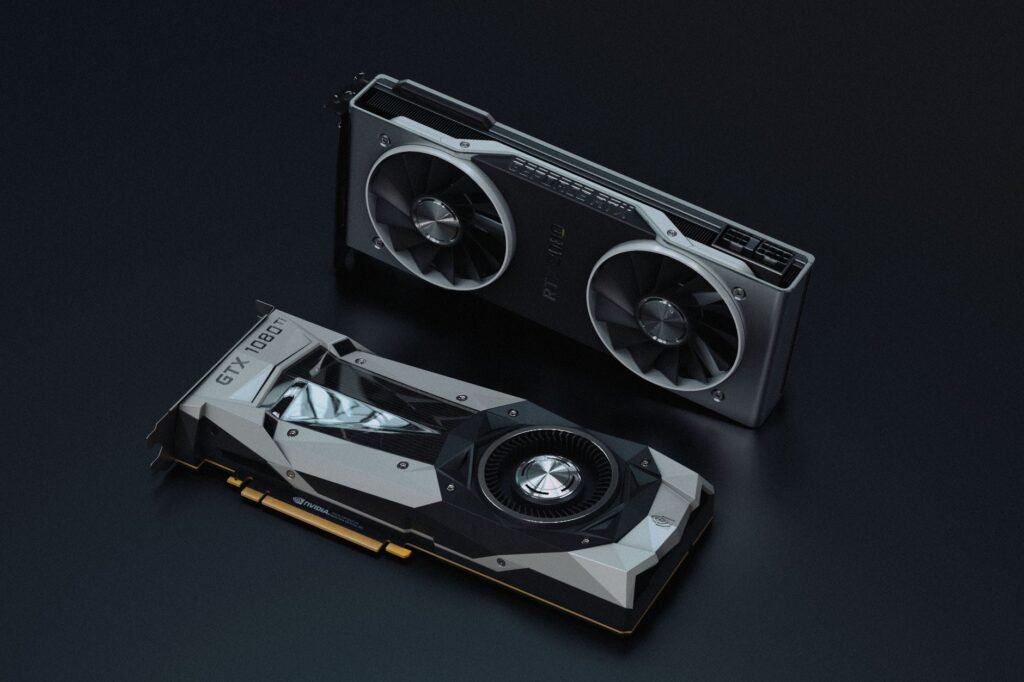
A discrete GPU with 8GB or more of VRAM (an RTX 4060 Ti 16GB is a common sweet-spot pick) will run the same models 5-15x faster than CPU-only inference. If you don’t have a GPU to spare, an 8B model on a mini PC with 16GB of RAM is a perfectly reasonable starting point – just don’t expect instant replies.
Install Ollama
Ollama is the easiest way to run local models – it handles downloading, quantization, and serving through a simple API, with no manual dependency wrangling.
Linux / Mac:
curl -fsSL https://ollama.com/install.sh | shWindows: download the installer directly from ollama.com.
Docker (any OS, recommended if this is running on a home server):
docker run -d --name ollama -p 11434:11434 -v ollama:/root/.ollama ollama/ollamaAdd --gpus=all to that command if you have an NVIDIA GPU and the NVIDIA Container Toolkit installed.
Once it’s running, pull a model:
ollama pull llama3.1:8bAnd test it directly from the terminal:
ollama run llama3.1:8bAdd Open WebUI for a ChatGPT-Style Interface
The terminal is fine for testing, but a proper chat interface with conversation history, multiple models, and file uploads makes this actually usable day to day. Open WebUI is the most widely used option and runs as its own Docker container:
docker run -d -p 3000:8080 --add-host=host.docker.internal:host-gateway -v open-webui:/app/backend/data --name open-webui ghcr.io/open-webui/open-webui:mainVisit http://localhost:3000 (or your server’s IP on port 3000), create an account on first launch, and you’ll see every model you’ve pulled through Ollama available in a dropdown, in an interface that will feel immediately familiar if you’ve used ChatGPT.
Reaching It From Outside Your Home
Do not port-forward port 3000 directly to the internet. Open WebUI has a login screen, but exposing any home service directly is an unnecessary risk when better options exist:
- Tailscale (easiest) – installs on your server and your phone/laptop, creates a private mesh network between your own devices, and lets you reach
http://your-server-tailscale-ip:3000from anywhere with zero port forwarding and no public exposure at all. - A reverse proxy with authentication (Caddy or Nginx Proxy Manager plus a service like Authelia) if you specifically want a public URL you can share, at the cost of more setup and more surface area to secure properly.
For a single-household setup, Tailscale is the right default – it’s free for personal use, takes about ten minutes to configure, and doesn’t require opening anything on your router.
Keeping It Running Reliably
Set both containers to restart automatically (--restart unless-stopped on the docker run commands above, or the equivalent in a docker-compose file) so a power blip or reboot doesn’t leave the chatbot down until someone notices. If you’re running this alongside other home server services from our Raspberry Pi home server guide, Portainer will show you both containers in the same dashboard as everything else.
Is It Worth It?
If privacy matters to you, if you’re curious how these models actually work, or if you just don’t want another monthly subscription, yes. If you need the best possible answer on a hard technical or research question, keep a cloud option on hand for that – most people who self-host end up running both, using the local model for routine tasks and reaching for a cloud model when the stakes (or the difficulty) go up.