
Affiliate disclosure: As an Amazon Associate, HomeNode earns from qualifying purchases at no additional cost to you. Product availability subject to change.
An 8-bay desktop NAS tops out somewhere around 160-200TB raw with today’s largest drives, and for most home labs that’s plenty. It stops being plenty once you’re running Immich on a growing photo library, keeping full VM backups alongside a media archive, and running a Plex or Jellyfin library that keeps absorbing 4K remuxes. At that point the question isn’t whether to upgrade – it’s whether to buy a second 8-bay box or move to a rackmount chassis built to hold twelve, sixteen, or more drives from day one. This is the tier where NAS spending stops being a weekend hobby purchase and starts looking like a real infrastructure decision.
Our 8-bay NAS comparison already covers the desktop tier well, so this guide starts exactly where that one ends – the point where a second 8-bay purchase stops making sense and a genuinely bigger chassis becomes the better long-term decision. Two 8-bay units running side by side means two separate storage pools to manage, two points of potential failure to monitor, and no shared redundancy between them; a single 12-bay-plus rackmount unit consolidates that into one array with one set of drive health metrics to watch.
Who This Tier Is Actually For
This is not a recommendation for someone with a media library under 50TB or no existing rack. A 12-bay rackmount unit needs a 19-inch enclosure, decent airflow, and usually a UPS sized for its power draw – it is not going on a shelf in the living room. Buy in here if you’re already running a home lab with a rack, you’re hitting the ceiling on an existing 4-bay or 8-bay device, or you’re consolidating multiple smaller NAS boxes into one array with better redundancy. Skip it if your actual storage need is under 60-80TB; a well-configured 8-bay desktop NAS with modern high-capacity drives will cost less, use less power, and be quieter for years yet.
Checking Your Actual Bay Count Need Before Buying
It’s worth doing this math honestly before committing to a 12-bay-plus purchase. Take your current data footprint, add your realistic growth rate over the next three to five years, and divide by the largest reasonably-priced drive size you’re willing to buy – that’s the minimum usable bay count before accounting for parity drives. Households consistently overestimate this number, assuming exponential growth that doesn’t materialize, and end up with eight empty bays for years. If the math comes out under eight bays even with generous growth assumptions, the desktop 8-bay tier covered in our other NAS guide is genuinely the better buy; this tier exists for the households whose math actually clears twelve.
What the Extra Money Actually Buys
The price jump from an 8-bay desktop unit to a 12-bay rackmount one isn’t just four more drive slots. Rackmount chassis in this tier typically add redundant, hot-swappable power supplies, so a single PSU failure doesn’t take the array offline. They usually step up to a faster CPU class capable of running more concurrent Docker containers or VMs alongside file serving, and RAM ceilings move from 8-16GB to 32GB or higher, which matters once ZFS-style caching or multiple containerized services are in play. Network options expand too – most units in this range ship with at least one 10GbE port standard rather than as a paid add-in card, and some support link aggregation across multiple ports for real multi-client throughput. None of that matters if you’re storing a few hundred gigabytes of documents. All of it matters once you’re serving 4K media to three rooms while a backup job runs in the background.
Comparison: What You’re Actually Buying at Each Price Point
| Model | Bays | RAM (stock/max) | Network | Price Tier | Best For |
|---|---|---|---|---|---|
| Synology RS2423+ | 12 (expandable to 24) | 4GB / 32GB | 4x 1GbE, 10GbE add-in | Mid-range | Households wanting Synology’s software with room to expand later |
| QNAP TS-1264U-RP | 12 | 8GB / 64GB | 2x 2.5GbE, 10GbE add-in | High-end | Redundant PSU as a stock feature, heavier VM workloads |
| TerraMaster U12-423 | 12 | 8GB / 32GB | 2x 2.5GbE | Budget | Best entry point into rackmount 12-bay without Synology/QNAP pricing |
| Synology RS3621xs+ | 12 (expandable to 36) | 16GB / 64GB | 4x 1GbE, 10GbE add-in | Premium | Xeon-class performance, businesses and serious multi-user labs |
| QNAP TL-D1600S | 16 (expansion unit) | N/A | N/A (attaches via cable) | Budget (expansion unit) | Adding 16 more bays to an existing QNAP array instead of buying a second NAS |
The Picks
Synology RS2423+ is the sensible default if you already run Synology’s DSM elsewhere in your setup. It keeps the same software you’re used to – Synology Photos, Active Backup, Synology Drive – while giving you 12 bays and a clean upgrade path to 24 via an expansion unit later, so you don’t have to guess your final capacity on day one.
QNAP TS-1264U-RP justifies its higher price with a genuinely useful feature at this scale: redundant, hot-swappable power supplies as a stock configuration, not an add-on. If this array is holding your only copy of anything important, that alone is worth the premium over a single-PSU unit.
Weighing up QNAP models? The QNAP NAS buyer’s guide covers the TS-233 through the all-flash TBS-h574TX.
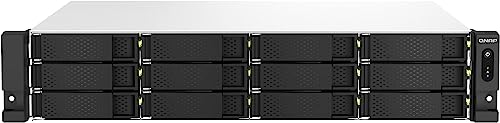
- Quad-core Intel Celeron N5105/N5095 burst up to 2.9 GHz processor and 8GB RAM On-Board (Non-Expandable)
- Dual 2.5GbE (2.5G/1G/100M) ports accelerates file sharing across teams and devices or streamline large file transfers
- PCIe Gen 3×2 Slots for optional QM2 card, USB Card or Network card
TerraMaster U12-423 is the value play in this category – real 12-bay rackmount hardware at a different price point than Synology or QNAP’s software ecosystem. TerraMaster’s TOS software takes a different approach than DSM, prioritizing a lower entry price, while the hardware does the same job of spinning drives and serving files.
Synology RS3621xs+ sits at the top of this list for a reason: a Xeon processor, ECC memory support, and enough horsepower to run heavier virtualization workloads directly on the NAS rather than farming everything out to a separate hypervisor box. This is overkill for pure file storage and exactly right for a home lab trying to consolidate storage and compute into fewer boxes.

- Synology RackStation RS3621xs+ is a high-performance, versatile, and scalable 12-Bay rackmount enterprise storage NAS designed…
- Xeon D-1541 8-Core 2.1GHz CPU, Up To 2.7GHz Turbo; 48GB DDR4 ECC UDIMM Memory; 48TB (12 x 4TB) SATA 3.5″ HDDs for High-Capacity…
- Provides solid and protected data security and lightning-fast performance. Supports large multi-user environments while handlin…
QNAP TL-D1600S isn’t a NAS on its own – it’s an expansion shelf that adds 16 more drive bays to a compatible QNAP unit over a dedicated cable. If you already own a QNAP array and just need more raw bays rather than more compute, this is meaningfully cheaper than buying a second full NAS.
Drives, RAID, and Power Planning
Buying the chassis is half the budget. Twelve enterprise or NAS-rated drives at 16-20TB each will typically cost more than the NAS itself, so plan the full build cost before committing, not just the sticker price on the enclosure. Most 12-bay units in this class support SHR-2, RAID 6, or equivalent double-parity arrays, which you should use at this drive count – losing two drives simultaneously during a rebuild window is a real risk once you’re running a dozen mechanical drives continuously. Size your UPS for the NAS’s full draw under rebuild load, not idle draw; a rebuild after a drive failure pulls noticeably more power than day-to-day operation, and that’s exactly the moment you don’t want a brownout interrupting the process.
Buy drives from at least two different retailers or batches when possible. Drives purchased together in one order often come from the same manufacturing batch, and a batch-level defect shows up as multiple simultaneous failures instead of one – the exact scenario double-parity RAID exists to protect against, undermined if several drives fail in the same week. It costs nothing extra to stagger purchases by a few weeks or split an order across two sellers, and it measurably reduces correlated-failure risk on an array this size.
Migrating From an 8-Bay NAS Without Losing Data
The actual migration is the part people underestimate when planning this upgrade. The safest path is running both units simultaneously for a period – set up the new 12-bay array, use the NAS vendor’s own migration or sync tool (Synology’s Hyper Backup or DSM migration assistant, QNAP’s Hybrid Backup Sync) to copy data across over the network, and verify checksums on a sample of files before decommissioning the old unit. Resist the urge to physically move drives between chassis to “save time” unless you’ve confirmed your specific vendor supports that migration path for your exact model pairing – it doesn’t always, and getting it wrong can mean rebuilding the array from scratch. Budget several days for a large migration over a home network; 100TB of data moving even at a healthy sustained rate takes real time, and rushing it by skipping verification is how silent data corruption slips through unnoticed until it’s too late to recover from the old array.
Noise and Placement Realities
Twelve enterprise drives spinning continuously, plus rackmount cooling fans running at server-appropriate speeds rather than desktop-quiet ones, produce a genuinely audible hum that most people don’t want in a living space. This is part of why this tier assumes a dedicated rack in a basement, closet, or garage rather than a shelf in a home office – it’s not just about fitting a 19-inch chassis, it’s about not hearing it constantly. If the rack has to live somewhere people spend time, look specifically at each model’s published noise rating in dB and budget for supplemental sound dampening (foam panels, a rack enclosure with acoustic doors) rather than assuming it’ll be tolerable once installed.
The Practical Recommendation
If you’re consolidating two or three smaller NAS boxes and want room to grow without another forklift upgrade in three years, the Synology RS2423+ is the safest buy – proven software, a real expansion path, and pricing that doesn’t require a second mortgage. If uptime is the priority because this array holds something you genuinely cannot lose, pay the premium for the QNAP TS-1264U-RP’s redundant power supplies. If budget is the constraint and you just need twelve bays of solid hardware, the TerraMaster U12-423 gets you there for measurably less. Save the RS3621xs+ for the specific case where this box is also your virtualization host – otherwise you’re paying for CPU headroom a pure file server will never use. Whichever model you land on, treat the migration itself as part of the project timeline, not an afterthought squeezed in after the hardware arrives.