A USB drive hanging off a MacBook is a fine backup until the day you stop plugging it in. Laptops get carried around, the cable gets unplugged, and three months later Time Machine quietly reports that its last successful backup was in spring. A network share fixes the discipline problem: the Mac backs up whenever it is on Wi-Fi, without anyone remembering anything.
This guide is for Mac households that already own a NAS, or are about to buy one, and want it to act as the Time Machine destination for two, three or four machines. It covers how Time Machine behaves over SMB, why a per-Mac quota matters more than most people expect, what the NAS hardware actually needs to do the job reliably, and how to size drives when several Macs share one pool.
One thing to settle up front: a NAS is a backup target, not a backup strategy. The last section deals with that, because a single box in a single house covers exactly one of the failure modes worth worrying about.
How Time Machine over SMB works
Apple retired AFP years ago. Modern Time Machine backups to a network destination run over SMB, and the share has to advertise itself as a Time Machine target so macOS will offer it in the Time Machine preference pane. On Synology’s DSM and UGREEN’s UGOS this is a checkbox on a shared folder; on TrueNAS it is a purpose-built SMB share preset.
Once connected, macOS creates a sparse bundle disk image inside that share — a virtual disk split into thousands of small band files. The Mac formats the inside of that image as APFS and writes snapshots into it. The NAS never sees your files as files; it sees one large directory of opaque bands, which is why you cannot browse a network Time Machine backup from the NAS web interface.
Why the sparse bundle matters
Two consequences follow. First, the NAS filesystem underneath does not need to understand APFS, so ZFS, Btrfs and ext4 all work equally well as hosts. Second, corruption inside the image is invisible to the NAS: a scrub that reports a healthy pool says nothing about whether the sparse bundle itself is intact. Verifying backups from the Mac side, occasionally, is still worth doing.
What the NAS actually needs
The requirements are modest but specific. SMB3 support is non-negotiable, and so is the ability to flag a share as a Time Machine destination. Beyond that, the two things that separate a smooth experience from a frustrating one are memory and network speed.
Sparse bundle writes are a flood of small random operations, and the NAS caches metadata in RAM. A unit with 2GB struggling to serve three Macs and a media library at once is where the “backup took all night” complaints come from. More memory gives the filesystem room to cache, which is why a RAM upgrade on a NAS is often the cheapest meaningful improvement you can make to an existing box.
Network speed sets the ceiling on that first full backup, which can run into hundreds of gigabytes. Gigabit Ethernet is adequate; 2.5GbE shortens the initial run considerably if your switch and Mac adapter can match it. Subsequent hourly increments are small enough that either is fine.

- 【Advanced Home Data & Media Hub】For advanced home users who need phone backup, file storage, and centralized data man…
- 【Built for Creators, Media Servers & Advanced Apps】Powered by the Intel N100 Quad-Core CPU, 8GB DDR5 RAM, 2.5GbE netw…
- 【Up to 80TB for Growing Digital Libraries】 Supports up to 80TB of storage using two HDD bays and two M.2 NVMe SSD slo…
Two-bay NAS picks for a Mac household
Two bays in a mirror is the right shape for most families. You get redundancy against a single drive failure, a simple upgrade path, and low idle power for a box that runs permanently.
The UGREEN DXP2800 leans towards people doing more than backups. Its Intel N100 quad-core, 8GB of DDR5 and 2.5GbE networking give it headroom for Docker containers and media serving alongside Time Machine duty, and the two M.2 NVMe slots sit alongside the two drive bays for a claimed 80TB ceiling.
The Synology DS224+ takes the opposite approach: a Celeron J4125, 6GB of memory, dual 1GbE ports, and DSM, which has handled Apple backup shares for longer than almost anything else. This configuration ships with 8TB of storage as two 4TB drives, so it arrives ready to configure. Synology quotes operational power as low as 15 watts.

- Celeron J4125 4-Core 2.0GHz CPU, Up To 2.7GHz Turbo; 6GB DDR4 non-ECC SODIMM Memory; 8TB (2 x 4TB) 6Gb/s SATA HDDs fo…
- Consolidate and Safeguard: Integrated security features ensure centralized access and protect all your data, offering…
- Comprehensive Data Management: Manage and share various types of data, including files, photos, and surveillance vide…
If you are weighing the ecosystems rather than the enclosures, our NAS brand comparison goes deeper on software maturity, and the two-bay roundup compares these chassis directly.
Quotas and drive sizing for multiple Macs
Time Machine will expand until it fills whatever space it can see. Give three Macs an unrestricted share and the first one to run a large backup takes the lot. Every competent NAS lets you set a per-user or per-share quota, and you should — one share or user account per Mac, each with its own cap.
The old advice of two to three times the used capacity still holds. A MacBook with 400GB in use wants roughly 800GB to 1.2TB of quota to keep a useful depth of history rather than constantly pruning old snapshots.
| Destination | Connection | Per-Mac quota | Redundancy | Best suited to |
|---|---|---|---|---|
| USB drive per Mac | Direct USB | Whole drive | None | One desktop that never moves |
| Synology DS224+ | 2 x 1GbE | DSM shared folder quota | Two-bay mirror | Set-and-forget family backups |
| UGREEN DXP2800 | 2.5GbE | UGOS user quota | Two-bay mirror plus M.2 | Backups alongside apps and media |
| DIY TrueNAS box | Depends on build | ZFS dataset quota | ZFS mirror or RAIDZ | Tinkerers wanting snapshots and replication |
| Portable SSD | USB 3.2 Gen 2 | Whole drive | None | Offsite rotation copies |
Choosing drives
Use CMR NAS drives rather than desktop or SMR models. WD Red Plus in the 4TB WD40EFZZ configuration is a 5400 RPM CMR drive with 128MB of cache, tuned for continuous operation in bays up to eight. Seagate’s IronWolf 4TB is the closest equivalent, also CMR at 5400 RPM, with IronWolf Health Management, a three-year limited warranty and three years of Rescue Data Recovery Services included.

- Available in capacities ranging from 2TB to 12TB
- For RAID-optimized NAS systems with up to 8 bays
- Designed for Continuous Operation
Either is a sound choice for a mirrored pair. Our NAS hard drive guide covers the CMR question in more detail if you are buying larger capacities.
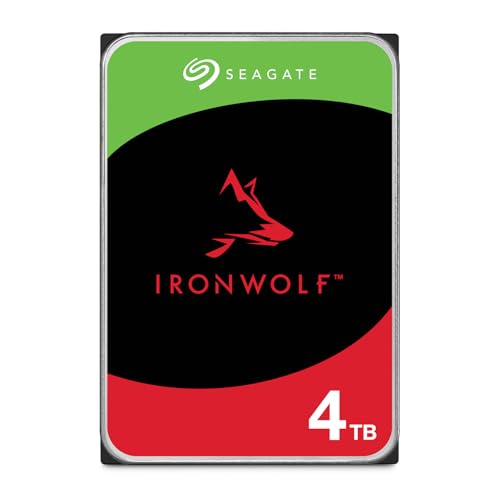
- IronWolf internal hard drives are the ideal solution for up to 8-bay, multi-user NAS environments craving powerhouse…
- Store more and work faster with a NAS-optimized hard drive providing ultra-high capacity up to 16TB and cache of up t…
- Purpose built for NAS enclosures, IronWolf delivers less wear and tear, little to no noise/vibration, no lags or down…
When a NAS is the wrong answer
A single iMac that sits on a desk and never moves is already well served by a directly attached drive. It is faster, simpler, and has fewer moving parts between the Mac and its backup.
Restoring an entire machine over Wi-Fi is also slow. If you need bare-metal recovery in an afternoon rather than overnight, keep a local copy as well and treat the NAS as the always-on layer.
Finally, a NAS is a computer that needs care: firmware updates, drive health monitoring, and protection from power events. Pair it with a UPS sized for a home server so an outage mid-write does not damage the pool. Any permanent wiring or new circuits for a rack should follow local electrical code, with a licensed electrician where required.
The NAS still needs an offsite copy
3-2-1 means three copies, on two types of media, one offsite. A NAS in the spare room gets you a second copy on a second medium. It does nothing about fire, flood or theft, because the original and the backup are in the same building.
Two practical answers. Replicate the NAS to a cloud object store on a schedule, which is hands-off once configured. Or keep a rotating physical copy: something like the Samsung T7 Shield, rated IP65 for water and dust resistance with USB 3.2 Gen 2 speeds up to 1,050 MB/s, cloned and left at work or a relative’s house.

- GO THE DISTANCE: Withstand whatever adventure with the wildly reliable T7 Shield; It’s designed for the elements with…
- YOUR CONTENT CAPTURED: Take on the project, then transfer all your heavy files within seconds with the USB 3.2 Gen 2…
- SHARE IDEAS IN A FLASH: The T7 is embedded with PCIe NVME technology that brings you fast read and write speeds up to…
What to do
For most Mac households, put two mirrored CMR drives in a two-bay NAS, create one quota-limited share per Mac, and let the machines back up on their own. Choose the Synology DS224+ if you want DSM’s long-settled Time Machine support and a box that arrives populated. Choose the UGREEN DXP2800 if the same hardware will also run containers or serve media, where the N100, 8GB of DDR5 and 2.5GbE give you room to grow.
Then set a calendar reminder for every quarter: check that each Mac’s last backup is recent, and refresh whatever offsite copy you chose. Backups that nobody verifies are just optimism with a spinning disk attached.
How these picks were chosen: HomeNode compares products using manufacturer specifications, current Amazon listing details and published owner feedback. Products are not tested in-house, and listings change often, so confirm current specifications on the product page before buying.
Affiliate disclosure: As an Amazon Associate, HomeNode earns from qualifying purchases at no additional cost to you.